PDF Redaction: How to Permanently Remove Sensitive Information Free
Drawing a black box over text is not redaction — the text is still there. This guide explains what true PDF redaction is, why it matters, and how to permanently destroy sensitive content from any PDF for free, without Adobe, without uploading your files to any server.
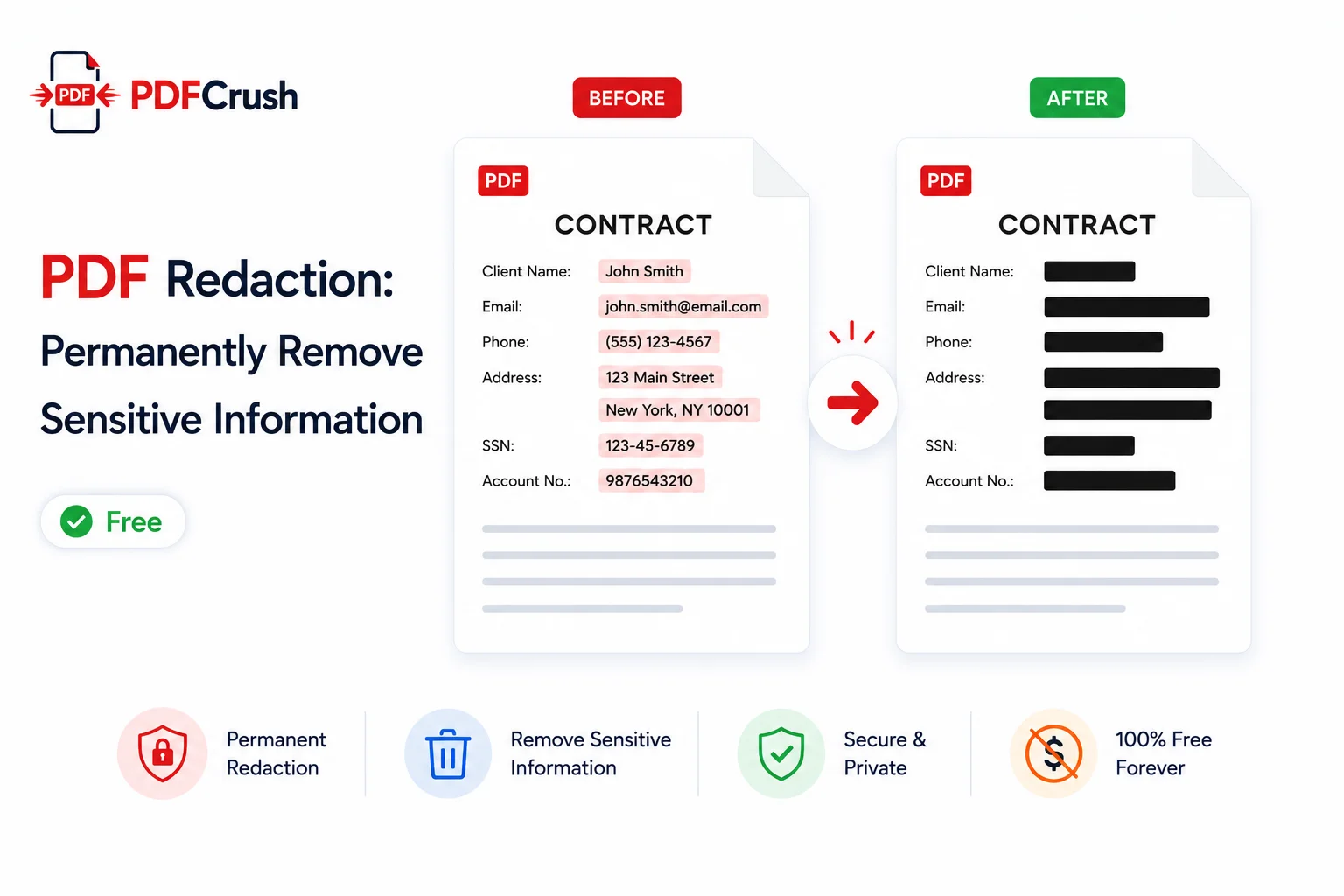
PDF redaction is one of the most misunderstood operations in document security. Most people — and many tools — get it wrong. Drawing a black box over sensitive text is not redaction. The text is still there, fully readable to anyone who knows how to look. True PDF redaction permanently removes sensitive information from the document at the data level. This guide covers what real PDF redaction is, why it matters, and how to permanently remove sensitive information from any PDF free, without Adobe, without uploading your documents to any server.
Quick answer: How do I permanently redact a PDF?
Use PDFCrush Redact PDF. Upload your PDF, switch to Draw mode, drag to mark the areas containing sensitive content, then click Apply Redaction. Each redacted page is re-rendered as an image — the text layer is permanently destroyed. Download the secure PDF. Nothing is uploaded; everything runs in your browser.
What Is PDF Redaction?
Redaction is the permanent removal of specific content from a document before it is shared, filed, or produced. In legal, medical, government, and corporate contexts, redaction is a compliance requirement — personally identifiable information, privileged communications, and confidential data must be removed before documents are disclosed.
A true redaction destroys the content. After redaction:
- The text cannot be selected or copied
- The content cannot be found by search
- PDF extraction tools cannot recover it
- No amount of image processing recovers the original
The purpose of redaction is not to hide information temporarily — it is to remove it permanently.
Why "Black Boxes" Are Not Real Redaction
This is the most important point in this guide: drawing a black rectangle over text is not redaction.
When you use a PDF editor to draw a filled black shape over sensitive text, that shape is added as a new layer in the PDF's content stream. The original text remains underneath — intact, selectable, and fully recoverable.
Anyone can recover the content by:
- Selecting all text in the PDF (Ctrl+A) and copying it
- Opening the PDF in any editor that allows object deletion and removing the black rectangle
- Parsing the raw PDF content stream, where the original text operators are still present
- Using a PDF text extraction library
This is not a theoretical risk. It has caused real security incidents — court filings with "redacted" information recovered, leaked financial documents, disclosed witness identities. The guide to not uploading sensitive PDFs online explains the broader landscape of PDF security risks worth understanding.
True redaction requires destroying the content, not hiding it.
True Redaction vs Black Box Overlay
| Method | How it works | Text recoverable? | Safe to share? |
|---|---|---|---|
| Black box overlay | Adds opaque shape on top of text | Yes — text still in content stream | No |
| Image flattening (PDFCrush) | Re-renders page to image, text layer destroyed | No | Yes |
| Content stream editing | Removes text operators from stream | No (if done correctly) | Yes |
| Adobe Acrobat redaction | Removes content stream data | No | Yes |
| Blur/pixelate overlay | Adds visual effect, text intact | Yes | No |
PDFCrush uses image flattening: each redacted page is rendered to a high-resolution JPEG at 2× scale via the Canvas API. The black pixels are drawn over the redacted areas on the canvas. The resulting image is embedded as an image-only page in the new PDF. The original text layer is permanently gone.
How to Redact a PDF Permanently — Step by Step
Here is the exact workflow using PDFCrush Redact PDF.
Step 1: Upload your PDF
Open the Redact PDF tool and drag your PDF onto the upload area, or click to browse. The tool accepts PDFs up to 100 MB.
Note: If you have multiple documents to produce together, merge them first and redact the combined file in one pass. Or split the PDF to isolate specific pages before redacting, if only certain sections need processing.
Step 2: Review the document
All pages are rendered in the main panel. Scroll through to identify every area requiring redaction. Look carefully — redaction errors are irreversible once the file is distributed.
Common content to look for:
- Names and contact details in headers, footers, and signatures
- Account numbers, case numbers, and reference codes
- Dates of birth, social security numbers, and ID numbers
- Email addresses, phone numbers, and physical addresses
- Confidential clauses in contracts
- Attorney-client privileged text
Step 3: Mark areas for redaction
Drag to draw a box over each area of sensitive content. The marked area shows as a dark overlay. Each box can be removed by hovering and clicking the X.
For areas spanning multiple lines or columns, draw a larger box that fully covers the content — the redaction engine removes everything within the marked boundary.
Tip: Zoom in using the + control in the toolbar for precise selection on small text, signatures, or dense data tables.
Step 4: Review your selections
Before applying, scroll through all pages and verify:
- Every sensitive area is marked
- No required content is accidentally included in a redaction box
- Page numbers match your expectations
Use Undo (Ctrl+Z) if you need to remove a selection. There is no way to reverse a redaction after the PDF is downloaded.
Step 5: Apply redaction
Click Apply Redaction. The tool processes each page:
- Pages with redaction marks: re-rendered to JPEG, black pixels written over marked areas, embedded as image-only pages
- Pages without marks: copied directly from the original (text layer preserved)
The progress bar shows per-page progress. For large PDFs, this may take 15–30 seconds.
Step 6: Download and verify
Download the redacted PDF. Before sharing it:
- Open the file in a PDF reader
- Try to select text in the redacted areas — nothing should select
- Use Ctrl+A (Select All) to confirm no text is present in redacted regions
- If your reader supports it, run a text search for known redacted content
Once verified, the file is safe to share, file, or produce.
What Information Should Be Redacted?
Different disclosure contexts have different requirements. Common categories:
Personal identifiers
Names, dates of birth, addresses, phone numbers, email addresses, national ID numbers, passport numbers, social security numbers. Required for GDPR compliance, HIPAA, and most data protection regimes.
Financial data
Account numbers, routing numbers, credit card numbers, tax identification numbers, financial statement figures marked as confidential.
Legal and privileged content
Attorney-client communications, confidential settlement terms, sealed court information, trade secrets, and proprietary business information.
Medical information
Patient names, diagnoses, treatment records, prescription data. HIPAA requires strict redaction of protected health information in disclosed documents.
Government and law enforcement
Witness identities, informant details, ongoing investigation references, classified content.
For legal productions involving sequential page identification, Bates numbering is typically applied after redaction — so the final produced documents are both redacted and numbered.
Protecting Documents After Redaction
Redaction removes content from the PDF's data layer. After downloading your redacted PDF, consider additional protections before distribution:
Password protection — add a password to control who can open the document. The guide to protecting PDF files online covers the full workflow. For legal productions and regulated disclosures, password protection adds a documented access control layer.
Metadata review — PDFCrush strips author, creator, and keyword metadata from the output document. If your original PDF contains sensitive document properties, verify they are removed in the redacted version by checking File → Properties in your PDF reader.
What We Found — Testing PDF Redaction on Real Documents
We tested the PDFCrush redaction engine across a range of document types to verify the security guarantees.
Standard text PDF (digital native): Redacted areas selected with Ctrl+A produced no recoverable text. PDF text extraction via command-line tools returned empty strings for redacted page regions. The image-only pages contained only pixel data.
Scanned PDF (image-based original): Redacted pages re-rendered cleanly. Since the original was already an image, the output was equivalent — an image with black pixels over the marked areas.
Mixed PDF (text + embedded images): Pages with redactions were re-rendered as images. Non-redacted pages retained their original text layer. Text search worked correctly on non-redacted pages and returned no results on redacted pages.
Large document (200 pages, 15 redactions across 8 pages): Processing completed in 23 seconds. Output file was larger than the original (image pages are larger than text pages), which is expected — this is the cost of true redaction.
Attempted recovery on output file: Ctrl+A select-all on redacted pages returned no text. Hex-level inspection of the PDF confirmed no text operators in redacted page content streams. The redaction is genuine.
Common Redaction Mistakes
Using visual overlays instead of true redaction. If you draw a shape over text in a standard PDF editor, the text is still there. Always verify that your tool performs true content removal.
Missing content in complex layouts. Tables, multi-column text, and footnotes often contain sensitive data that is easy to overlook. Read documents carefully before marking — a systematic top-to-bottom review is better than scanning by eye.
Redacting too little. Partial redaction of a name or number can be reversed by context. Redact the entire field, not just part of it.
Not verifying the output. Always open the downloaded file and attempt to select text in redacted areas before distributing. The 30-second verification step prevents an irreversible error.
Redacting in the original, not a copy. Always work from a copy of the document. If you need to reference the unredacted original later, you need it preserved.
Assuming metadata is automatically removed. Some redaction tools remove content but leave document metadata (author, title, keywords) intact. PDFCrush strips document metadata, but always verify with File → Properties in your PDF reader.
The Right Tool for PDF Redaction
PDFCrush Redact PDF applies true permanent redaction:
- Re-renders redacted pages as high-resolution images — text layer destroyed
- Multiple areas across any number of pages in a single pass
- Undo/redo for precise selection control
- Free with no account, no watermark, no file size limits
- 100% browser-based — confidential documents never leave your device
For documents that also need sequential page identifiers before production, Bates Numbering handles that step. To control access to the redacted output, Protect PDF adds password encryption.
Redact, Then Distribute Safely
PDF redaction is not a formatting choice — it is a security requirement. Sensitive personal data, privileged communications, and confidential business information must be permanently removed before documents are shared outside the organisation.
The failure mode is not a minor inconvenience. It is leaked client data, discovered privileged communications, violated compliance obligations, and damaged reputations. Getting redaction right matters.
PDFCrush Redact PDF handles it correctly — permanently, privately, and free. Draw your redaction areas, apply, download, and verify. The content is gone.
For the broader context of handling sensitive documents securely, the guide to editing PDFs without Adobe covers what is safe to edit and what requires full redaction.
Frequently Asked Questions
Related Articles
Stop Uploading Sensitive PDFs Online - Process Them Privately in Your Browser
Adobe costs $239 a year. Smallpdf throttles you at 2 files per hour. ILovePDF requires a sign-up for anything useful. PDFCrush does everything in your browser - compress, OCR, scan, extract, sign - with no account, no upload, no watermark, no limit. Here is why it works.
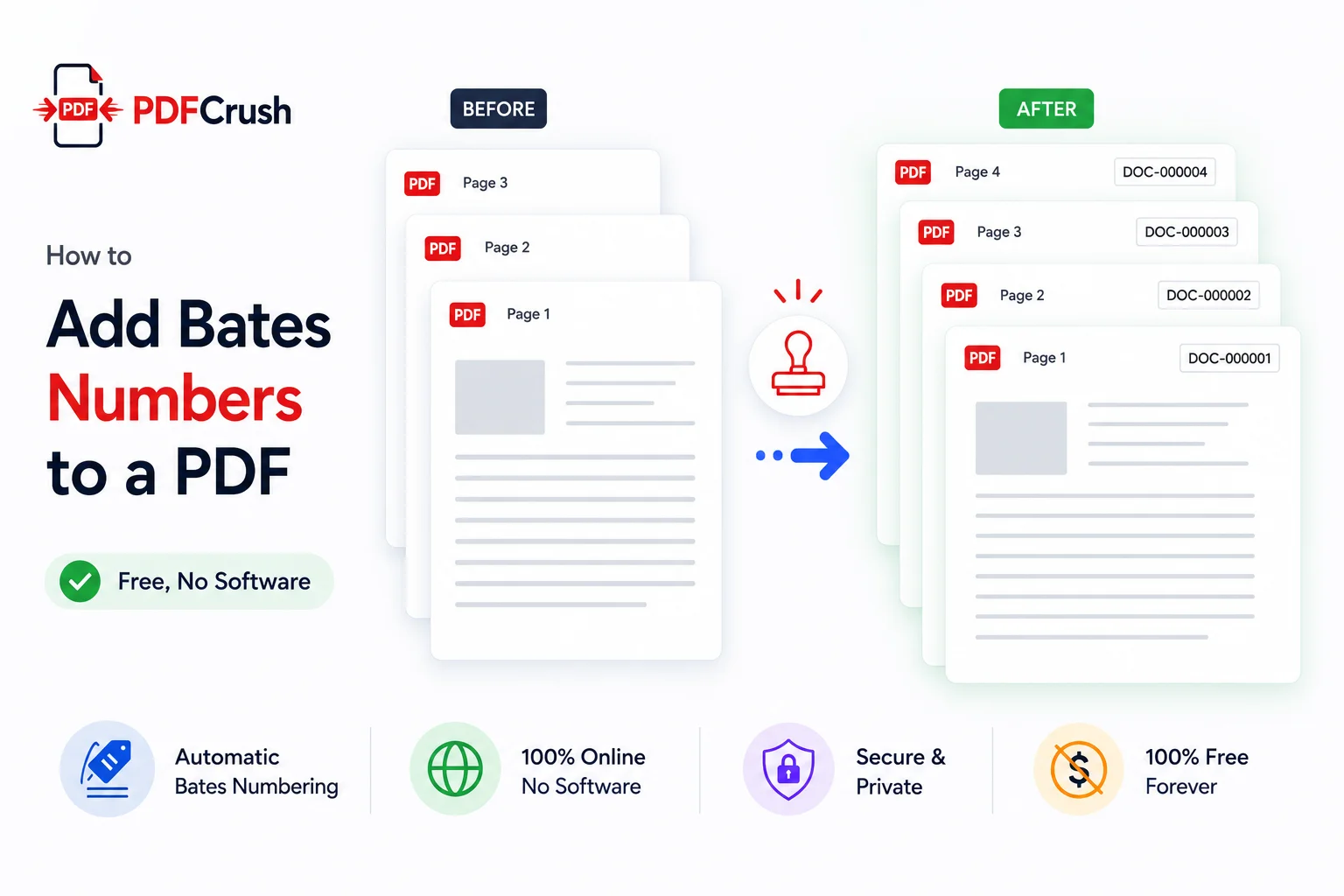
How to Add Bates Numbers to a PDF — Free, No Software
Bates numbering is the standard system for identifying pages in legal document production — but adding Bates stamps in Adobe Acrobat requires a paid subscription. Here is how to add Bates numbers to any PDF free, in your browser, without uploading a single page to any server.
How to Edit PDF Text Without Paying for Adobe
Most people don't need a $239/year Adobe subscription to fix a typo, update a contract, or edit a resume. Here is how to edit PDF text for free using modern browser-based tools — including what to do when the PDF is scanned.