How to Add Bates Numbers to a PDF — Free, No Software
Bates numbering is the standard system for identifying pages in legal document production — but adding Bates stamps in Adobe Acrobat requires a paid subscription. Here is how to add Bates numbers to any PDF free, in your browser, without uploading a single page to any server.
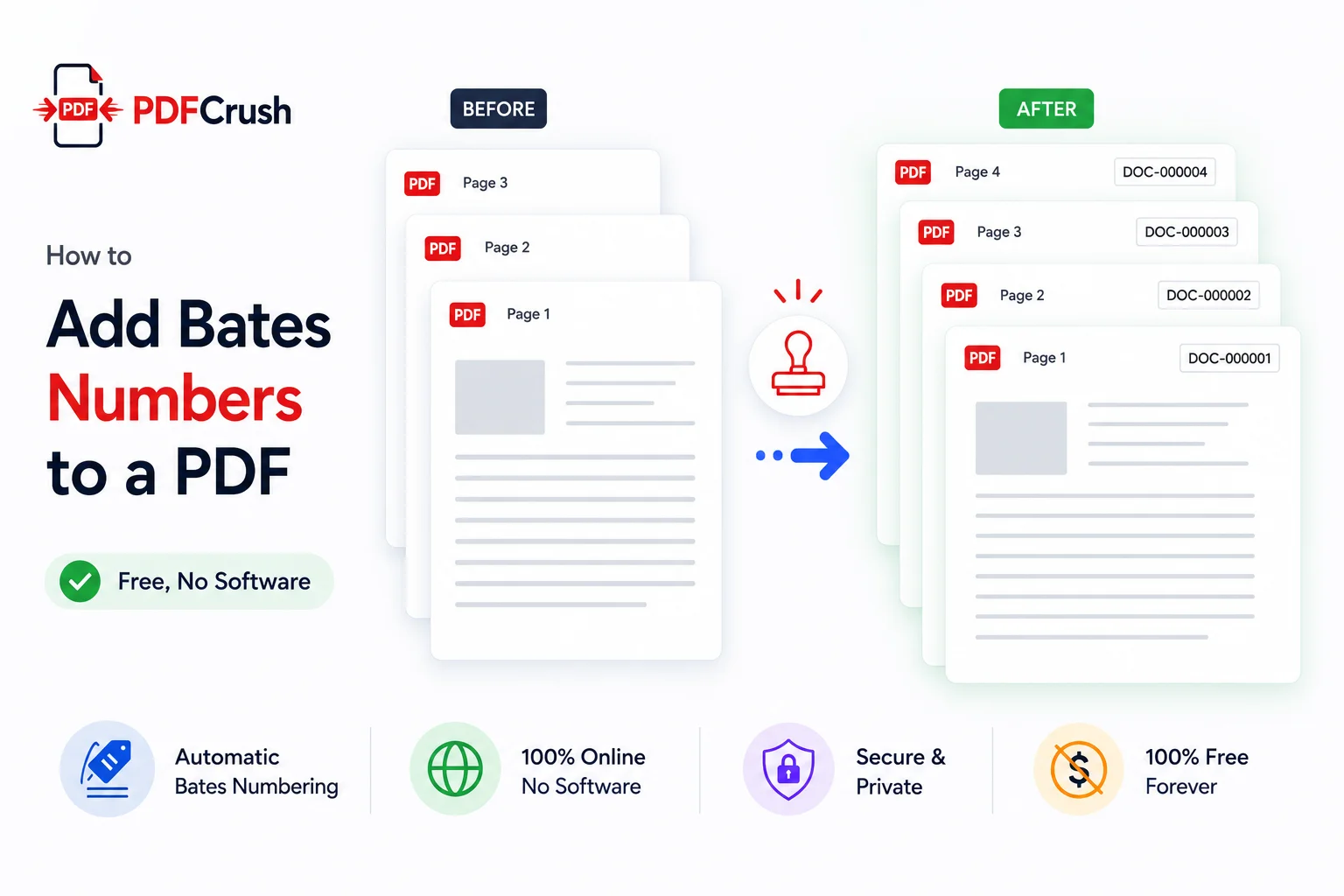
If you work in a law firm, legal operations team, or compliance function, you have almost certainly encountered Bates numbering. Adding Bates numbers to a PDF is the standard way to identify every page in a document production — making it possible to reference, track, and authenticate individual pages in litigation, regulatory submissions, and due diligence. The problem: the standard tool for Bates stamping, Adobe Acrobat Pro, costs over $200 per year. This guide shows how to add Bates numbers to a PDF for free, in your browser, without uploading confidential documents to any server.
Quick answer: How do I add Bates numbers to a PDF for free?
Use the PDFCrush Bates Numbering tool. Upload your PDF, set your prefix (e.g. CASE-), starting number, zero-padding width (4–8 digits), position, and font style. Click Apply Bates Numbers and download instantly. Everything runs in your browser — your files never leave your device.
What Is Bates Numbering?
Bates numbering is a sequential page identification system used primarily in legal document management. Each page of a document — or across multiple documents in a production — receives a unique alphanumeric stamp that typically combines:
- A prefix identifying the case, matter, or producing party (e.g.
CASE-,EXHIBIT-,ABC-) - A zero-padded sequential number providing a unique page identifier (e.g.
000001,001500) - An optional suffix for further categorisation (e.g.
-A,-CONF,-2026)
A complete Bates stamp looks like: CASE-000001, EXHIBIT-00023-A, or ABC-001500.
The system was originally developed by the Bates Manufacturing Company in the late 19th century and took its name from a hand-held rubber stamp numbering machine. Today, Bates numbering is a standard requirement in US civil litigation, corporate transactions, regulatory inquiries, and any formal document production where individual page traceability is required.
Why Legal Teams Use Bates Numbers
Bates numbers solve a specific problem that simple page numbering cannot: uniquely identifying a single page across a production that may span hundreds of documents and thousands of pages.
Deposition and trial preparation. When a witness refers to a document during a deposition, the transcript records the Bates number. Anyone reviewing the transcript later can locate the exact page instantly — regardless of which exhibit binder, PDF file, or document management system they are using.
Discovery production. Federal and state rules governing civil discovery require that produced documents be clearly identified. Bates stamps create a permanent, unique identifier for each produced page, enabling both parties to cross-reference documents consistently throughout the litigation.
Due diligence. M&A transactions involve large data rooms containing hundreds of documents. Bates numbering creates a consistent reference system for advisors on both sides, making it easy to cite specific pages in legal opinions and reports.
Audit and compliance. Regulatory submissions and internal audits require that referenced documents can be located precisely. Bates numbers provide that traceability without depending on file names or folder structures that can change.
For any of these workflows, the privacy of the documents matters as much as the numbering itself. The guide to not uploading sensitive PDFs online explains why browser-based processing is the only appropriate approach for confidential legal files.
How to Add Bates Numbers to a PDF Free — Step by Step
Here is the exact workflow using PDFCrush Bates Numbering.
Step 1: Upload your PDF
Open the Bates Numbering tool and drop your PDF onto the upload area, or click the browse button. The tool accepts PDFs up to 100 MB.
Tip: If you have multiple documents to number in sequence, merge them into one PDF first before uploading. The tool will stamp all pages in a continuous sequence, then you can split them back into individual document files if needed.
Step 2: Set the Bates prefix
Enter your prefix in the Bates Format section. Common formats:
CASE-for matter-specific productionEXHIBIT-for exhibitsABC-or your client code for party identificationCONF-for confidential documents- Leave blank for numeric-only stamps
Step 3: Configure the number sequence
Set your starting number and increment. For most productions:
- Start at
1for the first batch - Use increment
1for consecutive numbering - For a continuation of a previous production, start at the next available number
Step 4: Choose zero-padding width
Select how many digits your number should occupy. Most legal workflows use 6 digits (000001–999999). This ensures consistent label width across the entire production and allows for very large document sets.
| Padding | Example | Max pages |
|---|---|---|
| 4 digits | CASE-0001 | 9,999 |
| 5 digits | CASE-00001 | 99,999 |
| 6 digits | CASE-000001 | 999,999 |
| 7 digits | CASE-0000001 | 9,999,999 |
Step 5: Set position and style
Choose a position — bottom-right is standard for US legal production, but placement requirements vary by jurisdiction and court. Configure font (Helvetica for clean sans-serif, Times Roman for formal legal documents, Courier for technical productions), size, colour, and opacity.
Use X and Y offset controls to fine-tune placement when the default margin position conflicts with existing document content. Most courts accept bottom-center or bottom-right placement.
Step 6: Set page range
For most full productions, leave the range set to All pages. Use Skip first page if your PDF has a cover sheet that should not be stamped. For partial productions or supplemental productions, use the Custom range to stamp only the relevant pages.
Step 7: Preview and apply
Switch to Page view to see exactly where the Bates stamp will appear on the actual page. Verify the label format and position, then click Apply Bates Numbers. The stamped PDF downloads instantly.
Bates Number Format and Examples
| Use case | Prefix | Padding | Example |
|---|---|---|---|
| Litigation (standard) | CASE- | 6 digits | CASE-000001 |
| Exhibits | EXHIBIT- | 5 digits | EXHIBIT-00001 |
| Multi-party production | ABC- | 6 digits | ABC-000001 |
| Confidential subset | CONF- | 6 digits | CONF-000001 |
| Continuation batch | CASE- | 6 digits | CASE-000251 (starts at 251) |
| Numbered with suffix | CASE- | 6 digits + -A suffix | CASE-000001-A |
| Numeric only | (blank) | 6 digits | 000001 |
For supplemental productions, the increment setting allows you to number only odd or even pages, or apply stamps at intervals if your production protocol requires it.
Bates Numbering vs Standard Page Numbers — Key Differences
Understanding when to use Bates numbers versus standard page numbers avoids production errors.
| Feature | Bates Numbers | Standard Page Numbers |
|---|---|---|
| Purpose | Unique legal identification | Navigation |
| Scope | Across entire production | Within one document |
| Format | PREFIX-000001 | 1, 2, 3 or Page 1 |
| Legally significant | Yes | No |
| Repeats across documents | Never | Yes (every doc starts at 1) |
| Required for court production | Often | No |
| Supports continuation | Yes (custom start number) | No |
For documents where you need simple page navigation without legal identification requirements, Add Page Numbers is the simpler tool. For formal document production, Bates stamping is the correct approach.
Position and Formatting Options
Court rules and practice norms vary on where Bates numbers should appear. The most common placements:
Bottom-right — standard in US federal practice and most state courts. Least likely to conflict with document content.
Bottom-center — common for documents with right-justified footers or when the right edge is occupied.
Bottom-left — used when documents have existing page numbers at bottom-right that should not be obscured.
Top-right or top-left — used in some administrative proceedings and non-court productions.
For font styling, Helvetica is the most common choice in modern legal production — clean, legible at small sizes, and neutral. Times Roman is appropriate for formal briefs and correspondence. Courier is occasionally required in technical or patent-related productions.
The opacity control is useful when stamping over documents that have light backgrounds near the footer area — reducing opacity slightly to 0.85–0.9 can make the stamp less visually intrusive while maintaining legibility.
What We Found — Testing Bates Numbering on Real Document Sets
We tested the tool across a range of legal document types to understand where it performs well and what to be aware of.
Standard digital PDFs from document management systems (iManage, NetDocuments, Clio) stamped cleanly every time. Bates labels appeared at the correct position, font rendered at the configured size, and the resulting PDF opened correctly in Adobe Reader, Preview, and browser-based PDF viewers.
Scanned documents at 200–300 DPI stamped correctly. The stamp is added to the PDF page layer — not the scanned image — so scan quality does not affect stamping accuracy.
Multi-document merged PDFs (5–20 documents merged into one file) numbered consecutively without issue. The tool correctly incremented across what were originally separate documents, producing a continuous Bates sequence.
Large productions (200+ pages) processed in 3–8 seconds on a mid-range laptop. For very large documents (500+ pages), processing took 15–30 seconds but completed without memory errors or browser crashes.
Continuation batches (starting at a custom number from a previous production) worked exactly as expected. Setting start at 251 with a CASE- prefix correctly produced CASE-000251, CASE-000252, and so on.
The limitation we found: text-heavy PDFs with very tight margins occasionally had the Bates stamp overlapping existing footer content. The X/Y offset controls resolve this in most cases — a +5pt Y offset moves the stamp far enough below the main text area to avoid any overlap.
Common Mistakes When Adding Bates Numbers
Using the wrong padding width. If your production spans multiple batches and the first batch uses 5-digit padding (CASE-00001) but later batches switch to 6-digit padding (CASE-000251), the identifiers are inconsistent. Decide on a padding width at the start and stick to it throughout the matter.
Starting the second batch at the wrong number. If batch one ends at CASE-000100, batch two must start at CASE-000101 — not CASE-000001. Duplicate Bates numbers invalidate the production and create document identification disputes.
Not verifying the position before applying. Always check the Page view preview before applying stamps. A Bates number that overlaps with the document's existing page number or footer text will require re-stamping the entire production.
Stamping before merging when sequential numbering is needed. If you stamp five documents separately and then merge them, each document starts at 1. Stamp after merging if you need a continuous cross-document sequence.
Uploading confidential documents to cloud-based stamping services. Legal documents — discovery materials, contracts, client records, financial statements — should never be uploaded to third-party servers for processing. Browser-based tools process locally; the file never leaves your device. The risks of cloud processing are covered in detail in why you should stop uploading sensitive PDFs online.
Using a font that is too small. Bates numbers at 7–8px are technically visible but may not reproduce clearly on photocopies or in court exhibits. 9–11px is the practical minimum for reliable legibility in all reproduction contexts.
Protecting Bates-Stamped Documents Before Sharing
Once stamped, confidential productions often need password protection before being transmitted to opposing counsel or regulators. The guide to protecting PDF files online covers the full workflow. For legal teams managing document workflows more broadly, PDF tools for work and business provides a practical overview of the full toolkit.
If you need to annotate or mark up the stamped documents before finalising — adding comments, highlights, or redaction markers — the guide to editing PDFs without Adobe covers what is possible in a browser without a subscription.
The Right Tool for PDF Bates Numbering
PDFCrush Bates Numbering handles the full range of professional Bates stamping requirements:
- Custom prefix and suffix
- 4–8 digit zero padding
- Custom starting number and increment
- 6 position options with X/Y fine-tuning
- Helvetica, Times Roman, and Courier with bold and italic
- Custom colour and opacity
- All pages, odd/even, skip first, or custom range
Everything runs in your browser. Your documents are never uploaded. For standard page numbering on non-legal documents, Add Page Numbers is the simpler option.
Bates Stamp Your PDF Documents Now
Bates numbering is a legal requirement in document production — not a formatting preference. Getting it right from the first batch prevents the kind of production errors that trigger discovery disputes and court motions.
The PDFCrush Bates Numbering tool handles the full workflow free, in your browser, with no installation and no server uploads. Upload the PDF, configure your prefix and sequence, verify the preview, and download the stamped file.
For legal teams managing high-volume productions, common PDF problems and how to fix them covers the issues that surface most frequently when handling large document sets.
Frequently Asked Questions
Related Articles
Stop Uploading Sensitive PDFs Online - Process Them Privately in Your Browser
Adobe costs $239 a year. Smallpdf throttles you at 2 files per hour. ILovePDF requires a sign-up for anything useful. PDFCrush does everything in your browser - compress, OCR, scan, extract, sign - with no account, no upload, no watermark, no limit. Here is why it works.
How to Edit PDF Text Without Paying for Adobe
Most people don't need a $239/year Adobe subscription to fix a typo, update a contract, or edit a resume. Here is how to edit PDF text for free using modern browser-based tools — including what to do when the PDF is scanned.
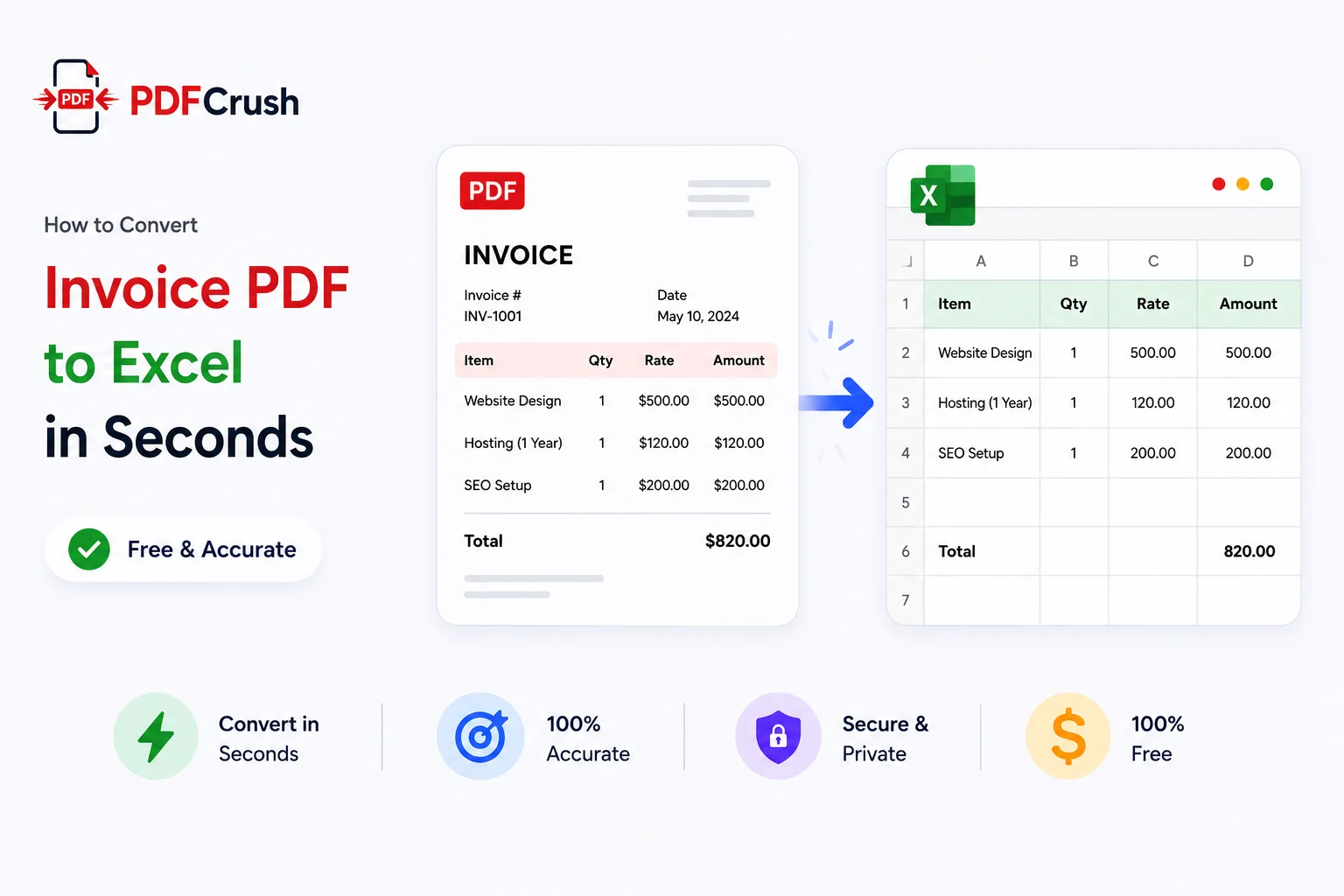
How to Convert Invoice PDF to Excel in Seconds (Free & Accurate)
Manually typing invoice data from PDFs into Excel is one of the most tedious jobs in accounting. Here's how to extract vendor details, line items, taxes, and totals from any invoice PDF automatically — free, in your browser, with nothing uploaded to any server.