How to Convert Invoice PDF to Excel in Seconds (Free & Accurate)
Manually typing invoice data from PDFs into Excel is one of the most tedious jobs in accounting. Here's how to extract vendor details, line items, taxes, and totals from any invoice PDF automatically — free, in your browser, with nothing uploaded to any server.
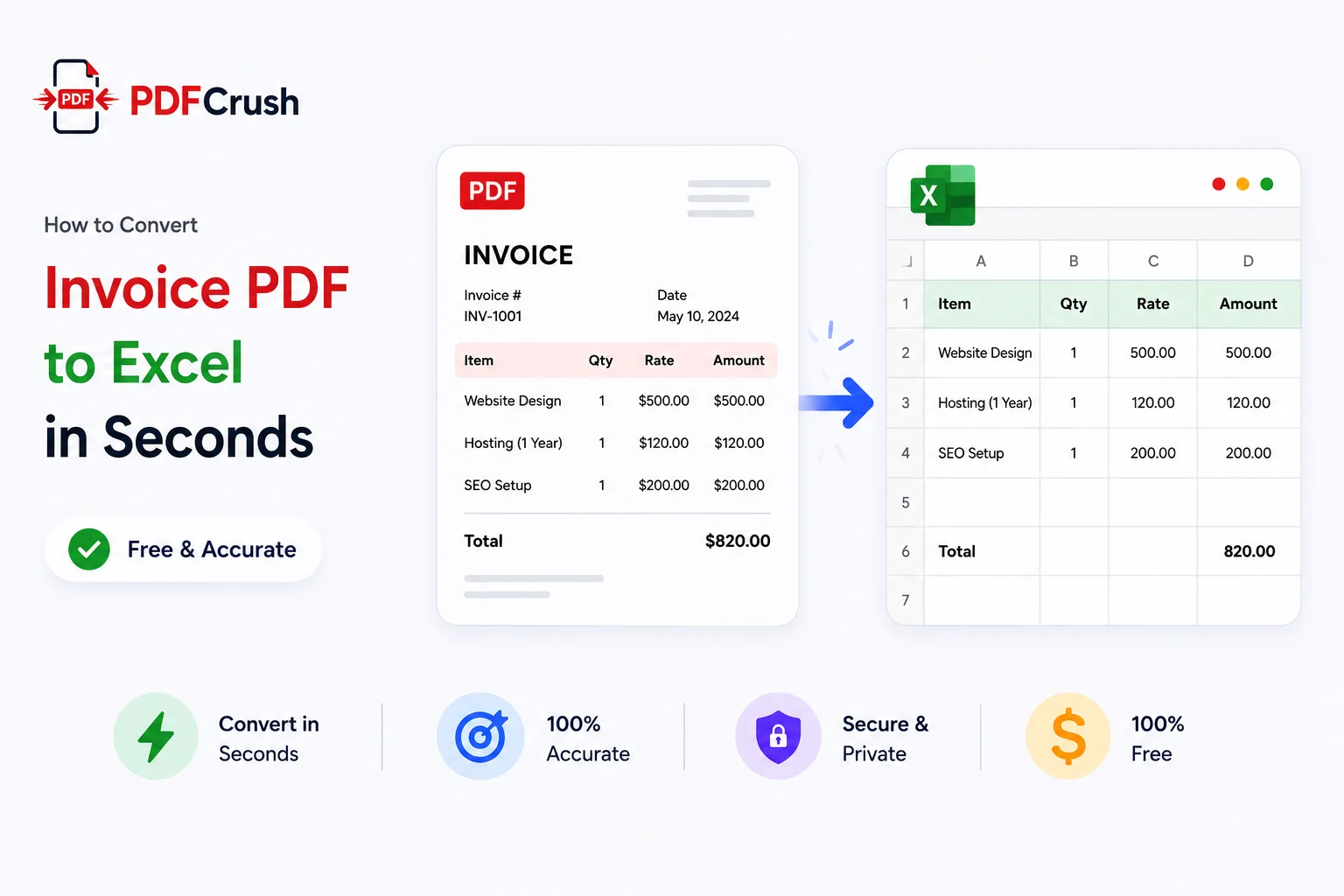
You just received 34 supplier invoices. All PDFs. All different templates. Your accounting software needs them in Excel by end of day.
If you've been here — and if you work in finance, procurement, or bookkeeping, you have — you know the options are grim. Copy each field manually, pay for enterprise extraction software, or hand it off to someone else to copy manually.
There's a better option, and it's free.
This article covers exactly how invoice PDF to Excel extraction works, what data you can pull from an invoice, and how to do it in seconds without uploading your files to anyone's server.
Quick answer: What is the fastest way to convert an invoice PDF to Excel?
Upload the invoice PDF to an OCR-powered invoice extractor. The tool parses the document, detects key fields (vendor, invoice number, date, tax, totals) and line items, then exports everything into a structured Excel workbook. For a clean digital invoice, the whole process takes under 10 seconds.
Why Businesses Convert Invoice PDFs to Excel
Invoices arrive as PDFs. Every major accounting, reporting, and tax system works with structured data — usually a spreadsheet or a database import. The gap between those two formats is where time disappears.
Accounting and bookkeeping
Every invoice needs to be recorded: vendor name, invoice number, date, amount, tax. Do that manually across 50 invoices per month and you're easily spending four to six hours on data entry alone. That's time not being spent on analysis, reconciliation, or anything that actually requires judgment.
Tax preparation and GST compliance
Filing tax returns — particularly in systems with GST, VAT, or multi-tiered tax structures — requires matching every input invoice to a corresponding record. Extracting invoice data to Excel makes it searchable, sortable, and cross-referenceable against your output records.
Expense tracking and financial reporting
Finance teams need invoice data in Excel to build cost reports, track vendor spend, spot budget overruns, and prepare monthly close. Manually retyping that data from PDFs introduces errors at exactly the point where errors are most expensive.
Procurement management
Procurement teams deal with purchase orders, vendor invoices, and delivery notes — often from dozens of different suppliers using completely different invoice formats. Automated extraction normalises all of that into one consistent spreadsheet structure.
The business case is simple: manual invoice entry is slow, error-prone, and scales badly. Automated extraction is fast, consistent, and handles volume without breaking a sweat. If you're concerned about uploading sensitive financial documents to third-party services, it's worth reading why browser-based PDF processing is the safer choice.
What Information Can Be Extracted From an Invoice?
A well-structured invoice extractor can pull a surprising amount of information from even a complex, multi-section PDF invoice.
| Field | What it contains |
|---|---|
| Invoice number | The unique identifier for the invoice, e.g. INV-2024-0847 |
| Invoice date | Date the invoice was issued |
| Due date | Payment deadline — important for cash flow tracking |
| Vendor name | Supplier or service provider name |
| Customer name | Your business or the billed entity |
| Currency | USD, EUR, GBP, INR, AUD, etc. |
| Subtotal | Pre-tax total |
| Tax amount | GST, VAT, CGST, SGST, IGST, or other tax figures |
| Total amount | Final payable amount including tax |
| Payment terms | e.g. Net 30, Net 60, Due on receipt |
| Line item: description | Product or service name |
| Line item: quantity | Units, hours, or count |
| Line item: unit price | Per-unit or per-hour rate |
| Line item: SKU/code | Product code or HSN/SAC code (common in GST invoices) |
| Line item: discount | Per-line or overall discount |
| Line item: line total | Qty × unit price, post-discount |
Not every invoice contains every field. The extractor captures what's present and leaves blank cells for what isn't — which is exactly what you'd want in a spreadsheet.
How Invoice PDF Extraction Works
Understanding the process helps you set realistic expectations and know when results might need a quick review.
Step 1 — PDF parsing
The document is parsed by a PDF engine (in this case, MuPDF) that reads the underlying structure. Digital PDFs store text as actual characters with coordinates — the parser can extract these precisely, including font size and position, which helps identify which text is a header vs. a value.
Step 2 — OCR for scanned invoices
Scanned invoices are images. The parser can't read image pixels as text, so an OCR (optical character recognition) layer kicks in. Tesseract.js processes each image region on the page, converting the visual text into readable characters. This is why OCR takes longer than parsing — it's doing significantly more work.
One thing worth highlighting: OCR runs automatically. You don't configure it, pay extra for it, or install anything. Most enterprise invoice processing platforms charge separately for OCR — it's often the most expensive part of an accounts payable automation subscription. Here it just happens as part of the upload. Upload the PDF, OCR runs, extraction happens. That's the entire process.
Step 3 — Layout analysis and field detection
Once the text is extracted, the system analyses the layout. Invoice documents follow patterns: the total is usually at the bottom right, the vendor name is near the top, and line items appear in a table in the middle. Layout analysis maps detected text to specific invoice fields based on both content patterns and spatial position.
Step 4 — Table extraction
Line items present a specific challenge: they're structured data within a document that also contains unstructured header information. A dedicated table extractor identifies grid structures — rows, columns, headers — and separates them from the surrounding text.
Step 5 — Structured export
All extracted fields and tables are written into an Excel workbook. Header fields (vendor, invoice number, date, totals) go into a labelled "Invoice Fields" sheet. Line items go into a separate "Line Items" sheet with proper column headers. The result opens in Excel exactly as you'd expect.
How to Convert an Invoice PDF to Excel — Step by Step
Here's the exact workflow using PDFCrush Invoice Extractor.
Step 1: Upload your invoice PDF
Open the Invoice Extractor and drop your PDF onto the upload area, or click the browse button. The tool accepts PDFs up to 100 MB.
Tip: If you have multiple invoices from the same supplier in one PDF, upload that single file. The tool handles multi-page documents and creates separate sheets per page.
Step 2: Automatic OCR and parsing
After upload, parsing starts immediately. For digital PDFs, this completes in a few seconds. For scanned invoices, the OCR phase runs page-by-page — you'll see progress as it works through each page.
Tip: OCR results are cached. Once it's done, export is instant no matter how many times you switch between Per Page and Combined mode.
Step 3: Preview and validate before downloading
Before you download anything, the tool shows a live side-by-side view: the original PDF on the left, the extracted Excel workbook on the right. This isn't a thumbnail — it's the actual Excel data rendered in the browser, showing every row and cell exactly as it will appear in the downloaded file.
Use this preview to validate the extraction before committing to the download. Check that vendor name, invoice number, dates, and totals match the original. Switch between sheets using the navigation controls. If the line items look right and the totals match, you're done.
This preview step is what separates a reliable extraction workflow from one that produces errors that surface later during reconciliation. Most errors are obvious at a glance — a missing row, a misread total — and take seconds to spot. Only download when you're satisfied.
Tip: Line items are the section most likely to need a glance. If an invoice has an unusual table layout or a vendor-specific format, verify the quantities and unit prices in the preview before exporting.
Step 4: Choose your export format
Select Extract Per Page to get one sheet per invoice page, or Extract Combined to merge everything into one sheet. Per Page works well when each page is a separate invoice. Combined works well for multi-page invoices that belong together.
Tip: If you need to import the data into accounting software, check whether it accepts .xlsx or .csv — both formats are available.
Step 5: Download your Excel file
Click the download button in the result screen. The file is generated from the cached extraction data — nothing is re-processed. Open it in Excel, Google Sheets, Numbers, or import it directly into your accounting system.
Invoice PDF to Excel — Example
Here's what a typical invoice extraction looks like.
Sample invoice fields (as they appear in the PDF):
Vendor: Brightline Office Supplies Ltd
Invoice No: INV-2024-0391
Invoice Date: 15 March 2024
Due Date: 14 April 2024
Payment Terms: Net 30
Extracted to Excel — Sheet 1: Invoice Fields
| Field | Value |
|---|---|
| Vendor / Supplier | Brightline Office Supplies Ltd |
| Invoice Number | INV-2024-0391 |
| Invoice Date | 15 March 2024 |
| Due Date | 14 April 2024 |
| Subtotal | £1,240.00 |
| Tax / VAT | £248.00 |
| Total Amount | £1,488.00 |
Extracted to Excel — Sheet 2: Line Items
| Description | Qty | Unit Price | Amount |
|---|---|---|---|
| A4 Paper (500 sheets) | 10 | £8.50 | £85.00 |
| Stapler HD-12 | 5 | £14.20 | £71.00 |
| Printer Ink Cartridges (4-pack) | 8 | £24.50 | £196.00 |
| Office Chair, Ergonomic | 2 | £444.00 | £888.00 |
That's the complete invoice — header data and line items — in a clean, usable spreadsheet in seconds.
Benefits of Automated Invoice Data Extraction
Time savings that actually add up
Typing one invoice manually takes two to five minutes. Extracting it automatically takes under 10 seconds. For a business processing 50 invoices per month, that's a straightforward calculation: manual entry costs several hours each month, automated extraction costs a few minutes.
Fewer errors where errors are most expensive
Invoice data feeds into accounts payable, tax returns, and financial reports. A single transposition error — £1,840 entered as £1,480 — can cause reconciliation headaches that take longer to fix than the original entry. Automated extraction copies what's actually on the invoice.
Better reporting without extra work
When invoice data lives in Excel from the moment it arrives, you can filter by vendor, sort by date, total by category, and build pivot tables without any re-entry. Reporting that used to require a manual compilation exercise becomes available on demand.
Faster reconciliation
Matching purchase orders to invoices to payments — the three-way match process in accounts payable — requires the same data fields from each document. Extracted invoices in a consistent spreadsheet format make matching and exception handling significantly faster.
Scalable processing
Manual entry doesn't scale: 200 invoices takes four times as long as 50. Extraction does scale: 200 invoices takes roughly four times as long as 50 seconds. If you're building a full document workflow, the edit PDF guide covers annotation and text editing that complements invoice extraction for businesses that also mark up documents before filing.
OCR vs Intelligent Invoice Extraction
Not all "extract PDF to Excel" tools work the same way. Understanding the difference helps you choose the right approach.
| Feature | Basic OCR | Intelligent Invoice Extraction |
|---|---|---|
| Reads scanned images | Yes | Yes |
| Extracts digital text | Sometimes | Yes, precisely |
| Identifies field labels | No | Yes |
| Maps vendor, date, total | No — outputs raw text | Yes — structured output |
| Detects line item tables | No | Yes |
| Separate header vs. line items | No | Yes |
| Output | Unstructured text | Labelled Excel workbook |
| Post-processing needed | Significant | Minimal |
Basic OCR gives you a wall of text that you still have to sort through. Intelligent extraction gives you an organised spreadsheet where vendor name, invoice number, and line items are in the right cells.
Common Mistakes When Extracting Invoice Data
Scanned invoices with poor image quality
The single biggest factor affecting extraction accuracy is scan quality. A clean 200–300 DPI black-and-white scan produces very clean OCR results. A photograph taken at an angle in dim lighting does not.
Solution: If you're scanning paper invoices, use a scanner app rather than a regular camera. Scan at 200–300 DPI, make sure the page is flat, and use good lighting. Most modern scanner apps include automatic correction for skew and contrast. Our guide to free invoice OCR covers scanning best practices in detail.
Non-standard invoice templates
Some vendors use unusual layouts — labels above values instead of beside them, totals in the middle of the page, or tables with merged cells. The extraction engine handles most layouts, but exotic designs occasionally cause field mapping issues.
Solution: Review the extracted data in the side-by-side preview before downloading. It takes 10 seconds to verify that vendor name and total match.
Multi-page invoices vs. multi-invoice PDFs
A 3-page invoice for a single vendor is different from a PDF containing three separate invoices from three different vendors. The tool processes each page as a unit.
Solution: For PDFs containing multiple separate invoices, consider using the Split PDF tool to separate them before extraction. Each invoice then gets its own clean Excel file. See our roundup of PDF tools for business workflows for related utilities.
Currency and number formats
Invoices from different countries use different number formats — 1.240,00 (European) vs 1,240.00 (American) — and different currency symbols. The extraction engine handles common formats, but verify totals when working with unfamiliar regional invoice templates.
Password-protected PDFs
Encrypted PDFs cannot be parsed until unlocked. If an invoice arrives with a password, you'll need to remove it first.
Extracting Invoice Line Items Into Excel
Line-item extraction is the most useful — and most technically demanding — part of invoice processing.
A line item is a row in the invoice table that represents a specific product or service. It typically contains:
- Description — what was purchased
- Quantity — how many units or hours
- Unit price — cost per unit or hour
- Discount — any per-line reduction
- Tax — per-item GST, VAT, or other tax
- Line total — final amount for that row
For an accountant or bookkeeper, this is the data that gets posted to specific expense codes or cost centres. Having it in a structured table — rather than needing to manually read and re-enter from the PDF — makes the whole posting process faster.
The PDFCrush extractor writes line items to their own Excel sheet with proper column headers, so you can sort by product, filter by total, or import directly into your accounting system's purchase ledger.
Who Should Use Invoice PDF Extraction Tools?
Accountants and bookkeepers
Whether you're handling 20 invoices or 200, extracting to Excel before posting reduces the time per invoice and the risk of keying errors.
Small business owners
If you're handling your own finances, extraction tools reduce the time spent on admin so you can spend it on running the business.
E-commerce sellers
High-volume sellers deal with supplier invoices, shipping invoices, and platform fee invoices constantly. Automated extraction turns that pile into a clean dataset for COGS and expense tracking.
Procurement teams
When you're managing vendor relationships and tracking spend across multiple suppliers, having invoice data in Excel makes spend analysis and budget management significantly easier.
Consultants and agencies
Project invoices, contractor invoices, subcontractor invoices — extraction keeps your cost tracking accurate without a full accounting software subscription.
Finance teams at growing businesses
As invoice volume grows, manual entry becomes a real bottleneck. Extraction scales with volume without adding headcount.
Batch Converting Multiple Invoice PDFs
For businesses processing large volumes of invoices — hundreds per month — the key question is workflow efficiency.
Monthly bookkeeping runs
Many bookkeepers batch-process invoices at end of month. Extraction tools make this faster: upload each PDF, extract to Excel, and accumulate a master spreadsheet. The Merge PDF tool can also combine multiple invoices into one PDF first if that fits your workflow.
GST compliance workflows
GST filing requires matching every purchase invoice against your input tax credit records. Extracting invoice data to Excel gives you a sortable, filterable record of all invoices for the period — searchable by vendor, invoice date, or tax amount.
Vendor invoice management
Procurement teams with dozens of vendors can build a vendor-level view by extracting all invoices from each supplier and combining them into a single workbook. Spend by vendor, trends over time, and exceptions all become visible.
Combined export — all pages in one sheet
The Extract Combined option merges every page of a multi-page document into a single sheet, with a separator row between pages. This is particularly useful beyond invoices: if you have a bank statement PDF where each page lists a series of transactions, Combined export gives you one continuous Excel table covering the entire period. Run filters, build pivot tables, or import directly into accounting software — no manual stitching of pages required.
What We Found — Testing Invoice Extraction on Real PDFs
We tested the Invoice Extractor across a range of invoice types to understand where it works well and where to set realistic expectations.
Digital invoices from common accounting software (QuickBooks, Xero, FreshBooks, Zoho) extracted cleanly every time. Invoice number, vendor, date, line items, and totals all landed in the correct cells without any manual correction.
GST invoices from Indian suppliers, including formats with CGST, SGST, and IGST breakdowns, extracted the tax fields reliably. The layout analysis correctly distinguished the tax breakdown rows from the main line items.
Scanned invoices at 300 DPI extracted well for straightforward single-column layouts. Handwritten annotations and coloured watermarks occasionally interfered with OCR accuracy on those specific regions — the rest of the invoice was fine.
Multi-vendor invoice PDFs (a common scenario when a supplier sends several invoices in one PDF) extracted correctly per page. Each page's data was independent, so a 5-page PDF with 5 different invoices produced 5 properly separated sheets.
The main limitation we found: very dense, low-contrast scans — the kind produced by older photocopier-fed scanners — required manual review of a few fields. Upgrading to a modern scanner app resolved this completely.
The overall picture: for the invoices that make up the majority of business volume — digital PDFs and good-quality scans — extraction is accurate and fast. Problematic edge cases are solvable with better source documents.
Invoice PDF to Excel Best Practices
Always review before exporting. The side-by-side preview is there for a reason. A 10-second check against the original PDF is worth it.
Check totals first. The total amount is the single most important field to verify. If that's right, the rest is very likely to be right.
Use Per Page for single-invoice PDFs. Each invoice gets a clean workbook. Use Combined when a PDF contains pages that belong together as one invoice.
Scan at 200–300 DPI. If you're digitising paper invoices, this is the sweet spot for OCR accuracy without oversized files.
Export to CSV for accounting software imports. Most accounting systems accept CSV. If you're planning to import directly rather than keep a spreadsheet, CSV is the cleaner format.
Keep your original PDFs. The extracted Excel file is a working copy. The PDF is the source of truth for audit purposes.
Process invoices before they accumulate. Weekly or bi-weekly extraction sessions are easier to manage than a year-end pile of 500 PDFs. The best free PDF tools for 2026 lists other tools that fit into an efficient document workflow alongside invoice extraction.
Frequently Asked Questions
Can I convert a scanned invoice to Excel?
Yes. The Invoice Extractor runs OCR automatically on all scanned pages. You don't need to do anything differently — upload the PDF and the tool handles scanned and digital pages together.
Can invoice line items be extracted?
Yes. Line item extraction is a core feature. Descriptions, quantities, unit prices, and totals are detected and written to a separate Line Items sheet in your Excel workbook.
Can I export invoice data to CSV instead of Excel?
Yes. Both Excel (.xlsx) and CSV formats are available at export time. CSV is useful for direct import into accounting software, ERP systems, or databases.
Does this work with GST invoices?
Yes. GST, CGST, SGST, IGST, VAT, and other tax fields are detected by label and position. Indian GST invoice formats with multiple tax breakdowns extract particularly well.
How accurate is the extraction?
For clean digital PDFs, accuracy is very high — invoice number, date, vendor name, and totals extract precisely. For scanned invoices, accuracy depends on scan quality. 200–300 DPI scans with good contrast achieve excellent results.
Can I process multiple invoices in one session?
The current tool processes one PDF per session. Multi-page PDFs (a single invoice across several pages) are handled fully. For separate invoice PDFs, process them one at a time.
Is my financial data secure?
Yes. All processing runs locally in your browser. Your invoice file, vendor details, financial data, and extracted results are never sent to any server. There is no cloud component — everything happens on your device.
What's the difference between Per Page and Combined export?
Per Page creates one Excel sheet for each PDF page. Combined merges all pages into a single sheet. Per Page suits PDFs where each page is a separate invoice. Combined suits multi-page invoices that belong together as one document.
Convert Your Invoice PDFs to Excel Now
Manually copying invoice data from PDFs is one of the most avoidable time sinks in accounting and finance. The alternative — automated invoice extraction — takes a fraction of the time, produces fewer errors, and doesn't require any software installation or subscription.
Upload your invoice PDF to the PDFCrush Invoice Extractor. OCR runs automatically. Vendor name, invoice number, dates, taxes, totals, and line items are extracted into a clean Excel workbook. Download it. Done.
Your financial data stays on your device throughout — nothing is uploaded, nothing is stored.
If you work with large PDF invoices that need size reduction first, the Compress PDF tool handles that in seconds. If you need to combine multiple invoices before processing, Merge PDF is the right starting point. And if a supplier sends you a password-protected invoice that needs unlocking before extraction, that takes one step with the Unlock PDF tool.
The data is in the PDF. It takes seconds to get it into Excel.