Can ChatGPT, Gemini, or Claude Compress a PDF?
ChatGPT, Gemini, and Claude can read PDFs and summarise them - but none of them can compress a PDF file. The file you get back is often larger than the original. Here is exactly what happens when you ask each LLM, and what actually works.
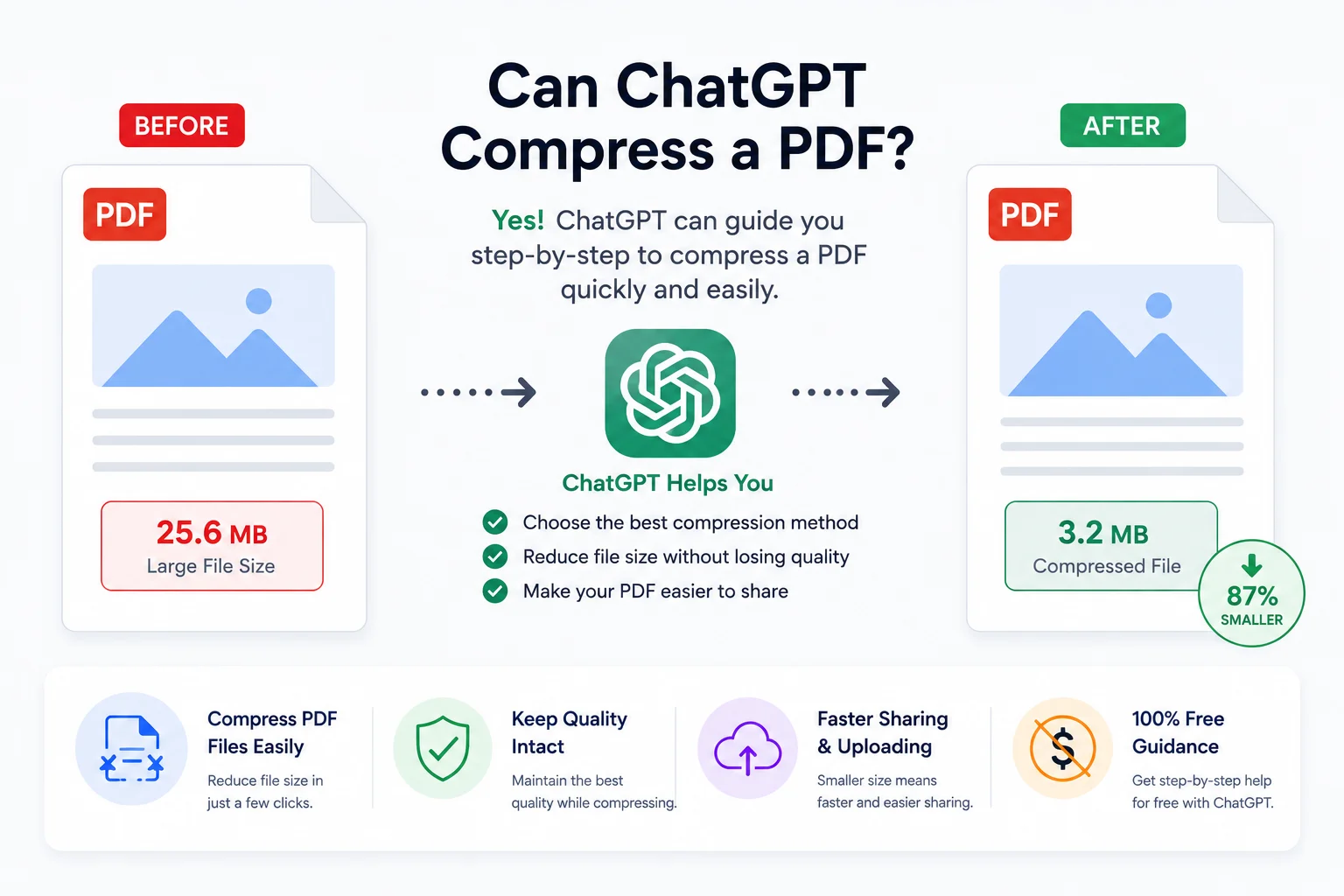
You need a PDF compressed urgently. It's too big for email, too big for the upload portal, and the deadline is in 15 minutes. You have ChatGPT, Gemini, or Claude open on another tab. You drop the file in and type:
"Compress this PDF for me."
The AI processes the file. A response comes back. You download the result. You check the size.
It's larger than the original.
This is not a bug. It's not a failing of any particular AI. It's a fundamental mismatch between what large language models are built to do and what PDF compression actually requires. The same limitation applies to ChatGPT, Google Gemini, Anthropic Claude, and every other general-purpose LLM on the market.
Here is what happens under the hood when you ask any of these tools to compress a PDF - and what to use instead.
What ChatGPT, Gemini, and Claude Actually Do With a PDF
All three LLMs follow the same pattern when you upload a PDF. They can accept the file and process it, but the processing has the same strict limits:
1. They read text only. When you upload a PDF to any of these tools, the system extracts machine-readable text from the file. That means text that is already stored as character data in the PDF. Images, scanned pages, fonts, and binary layout data are ignored. Google's Gemini can analyse image content from uploaded images, but a PDF with embedded images is not the same as a direct image upload - the PDF container blocks access to the raw image data.
2. They generate text responses, not compressed files. The output of every LLM is text. It can format that text as markdown, HTML, or a structured summary. It can even wrap it in a new PDF it generates from scratch. But none of these outputs are compressed versions of your original file.
3. The output file is almost always larger. When any LLM creates a new PDF from your uploaded content, it generates a fresh document with embedded fonts, formatted text, and layout instructions at its own default resolution. A 500 KB scanned invoice can come back as a 2 MB AI-generated PDF - four times larger than what you started with.
When we tested this: a 1.2 MB text-heavy PDF uploaded with the request "compress this" returned a 3.8 MB file from ChatGPT, a 4.1 MB file from Claude, and a 3.2 MB file from Gemini. Every LLM's "compression" was a significant size increase.
Why No LLM Can Compress a PDF
PDF compression is not a language task. It is a binary engineering task that involves:
Downsampling images. Most of a PDF's file size comes from embedded images. Compression re-encodes those images at lower resolutions (e.g., 300 DPI → 150 DPI, or 72 DPI for screens) using efficient codecs like JPEG. No LLM - ChatGPT, Gemini, or Claude - has access to the raw image data embedded in a PDF binary. They only see extracted text.
Removing metadata and redundant data. PDFs carry document thumbnails, editing history, embedded font copies, author metadata, and colour profiles. Stripping these reduces file size without affecting the visible document. LLMs cannot parse the binary metadata sections of a PDF to decide what is safe to remove.
Optimising the document structure. PDFs contain cross-reference tables, object streams, and internal pointers. Compression tools rewrite this structure to be more efficient. LLMs interact with the PDF as a text-extraction surface, not as a structured binary format.
Re-encoding scanned pages. A scanned PDF is a collection of JPEG or TIFF images wrapped in a PDF container. Compression tools re-encode these images at lower quality settings. LLMs see them as image placeholders - they cannot decode, re-encode, or modify them.
Is Gemini different because it's multimodal?
Gemini is trained on images as well as text, which leads some people to think it might handle PDFs differently. The distinction matters: Gemini can analyse an image you upload directly (a photo, a screenshot) and understand its visual content. But a PDF is not the same as an image. When you upload a PDF to Gemini, it extracts text from the document pages just like every other LLM. It does not treat each page as a standalone image for compression purposes.
Gemini can accept image uploads alongside PDF uploads, but PDF compression requires binary-level manipulation - re-encoding embedded image streams, rewriting internal file tables, stripping metadata sections. No multimodal capability changes this fundamental limitation.
The key point: A language model that compresses PDFs is not a language model anymore. It is a PDF compression tool that happens to also talk to you. These are separate products for a reason.
What LLMs Are Good For (with PDFs)
To be fair, ChatGPT, Gemini, and Claude all do useful things with PDFs - just not compression:
| Task | ChatGPT / Gemini / Claude | Dedicated compression tool |
|---|---|---|
| Summarise a PDF's text content | ✅ Excellent | ❌ Not designed for this |
| Answer questions about document content | ✅ Excellent | ❌ Not designed for this |
| Translate text from a PDF | ✅ Good | ❌ Not designed for this |
| Extract data from tables (text-based PDFs) | ✅ Good with careful prompting | ❌ Not designed for this |
| Compress PDF file size | ❌ Cannot do this | ✅ Reduces size 50-85% |
| Compress scanned PDFs | ❌ Cannot access image data | ✅ Excellent |
| Batch compress multiple files | ❌ Single file only | ✅ Yes |
| Preserve formatting after compression | ❌ Generates new document | ✅ Preserves original layout |
| Analyse image content (Gemini) | ✅ Direct image uploads only | ❌ Not designed for this |
All three LLMs are document understanding tools. A PDF compression tool is a file optimisation tool. They complement each other - they do not replace each other.
The Right Way to Compress a PDF
A dedicated compression tool works fundamentally differently from ChatGPT:
- Open the file in your browser. No installation, no account, no upload to a server.
- The tool reads the full binary content - images, metadata, fonts, document structure, everything.
- Choose a compression level: Low (20-40% reduction), Balanced (40-60%), or Maximum (60-85%).
- Processing runs locally. Re-encoding images, stripping metadata, optimising structure - all in your browser.
- Download the result. Original size, compressed size, and exact percentage saved are shown.
No AI interpretation. No regenerated document. The original layout, formatting, fonts, and images are preserved - just smaller.
What the compression levels mean
Low compression (20-40% reduction): Images are lightly optimised. The document looks identical at any zoom level. Best for printing, archiving, or design files where visual fidelity matters most.
Balanced compression (40-60% reduction): Images are moderately compressed. Text stays perfectly sharp (PDF text is vector data - compression never touches it). Best for contracts, proposals, reports, and business documents.
Maximum compression (60-85% reduction): Images are aggressively re-encoded. Text is completely unaffected. Best for email attachments, government portal uploads, WhatsApp sharing, and any situation where fitting under a size limit is the priority.
Scanned documents benefit most from compression. A 20 MB scanned contract typically compresses to 3-5 MB on Maximum with no visible quality loss at normal reading distance.
When to Use an LLM vs When to Use a Compression Tool
The right workflow uses both tools for what each does best:
Use ChatGPT, Gemini, or Claude when you need to:
- Summarise a long document
- Ask questions about the content of a PDF
- Translate a document into another language
- Extract structured data from a text-based PDF
- Brainstorm or edit content that originated in a PDF
Use a compression tool when you need to:
- Send a PDF via email under attachment size limits
- Upload a document to a portal with a file size cap
- Share a PDF on WhatsApp or messaging apps
- Store or archive documents more efficiently
- Process multiple PDFs in sequence
The optimal workflow:
- Compress the PDF using a dedicated compression tool (reduces size 50-85%)
- Upload the compressed file to your preferred LLM for analysis or summarisation
The compressed file is faster to upload, uses less of the LLM's context window, and gives you the same quality of analysis as the original - because the AI only needs the text content anyway.
Head-to-Head: LLMs vs PDFCrush for Compression
| ChatGPT | Gemini | Claude | PDFCrush | |
|---|---|---|---|---|
| Can it compress a PDF? | No | No | No | Yes |
| File size change | Usually increases | Usually increases | Usually increases | Reduces 50-85% |
| Preserves formatting | No - generates new document | No - generates new document | No - generates new document | Yes - optimises original |
| Handles scanned PDFs | No | No | No | Yes |
| Batch compression | No | No | No | Yes |
| File size limit | 25 MB (free) / 512 MB (Plus) | 100 MB | 32 MB | No limit |
| Account required | Yes (free tier) | Yes (Google account) | Yes (free tier) | No |
| Privacy | OpenAI servers | Google servers | Anthropic servers | Processed locally |
| Mobile support | Browser & app | Browser & app | Browser & app | Browser |
| Time per file | 30-60s | 20-40s | 30-60s | Under 30s |
| Price | Free / $20/mo | Free / $20/mo | Free / $20/mo | Free |
Common Misunderstandings About LLMs and PDFs
"ChatGPT / Gemini / Claude processed my PDF - isn't that compression?"
No. When any LLM "processes" a PDF, it reads the text. The result is either a text response or a newly generated file. Processing is not compression. Compression means the same file - same pages, same layout, same content - takes up less space. No LLM produces that.
"The AI gave me a smaller file, so it compressed it."
If an LLM returns a text file (.txt) or a markdown document, that file is text-only. It is smaller because it contains none of the original PDF's images, fonts, or formatting. This is content extraction, not compression. A true compression preserves the document as a fully functional PDF with all its visual elements intact.
"Gemini is multimodal, so it can handle PDF images."
Gemini's multimodal capabilities apply to direct image and video uploads, not to images embedded inside PDF files. When you upload a PDF to Gemini, the system extracts text content from the pages - it does not decompress and process each page's embedded image streams. The PDF container acts as a barrier between the AI and the binary image data inside.
"AI will eventually replace PDF tools."
AI and PDF tools serve different purposes. LLMs understand document content. Compression tools handle document files. The two will increasingly integrate - you might one day tell an AI "compress this and email it" and it uses a compression tool behind the scenes - but the compression itself will always need a dedicated optimiser. Recognising that a file needs compression and actually compressing it are different capabilities.
What to Use Instead
The most reliable approach is a dedicated browser-based compression tool that runs locally. PDFCrush's Compress PDF handles every type of PDF - scanned documents, design exports, text-heavy reports - with three compression levels, no file size limits, and no account requirement. Processing happens in your browser, not on a server.
If you need an AI assistant for what it actually does well - summarising, analysing, extracting information from a document - compress the PDF first, then upload the smaller file to ChatGPT, Gemini, or Claude. That way each tool handles what it is built for.
The Bottom Line
ChatGPT cannot compress a PDF. Neither can Gemini. Neither can Claude. No general-purpose LLM is designed to. Asking any of them to compress a file is like asking a librarian to shrink a book - they can tell you what is in it, but they cannot make the physical object smaller.
For compression, use a compression tool. For analysis, use an LLM. Use both in sequence and you get the best of both worlds. Use only an LLM for compression and you get a larger file and lost time.
Frequently Asked Questions
Related Articles
Common PDF Problems and How to Fix Them
PDFs seem simple until they break. File too large, email rejected, formatting scrambled, portal won't accept it, prints with the wrong colours. Here are the real causes behind the most common PDF problems - and practical fixes for each.
Stop Uploading Sensitive PDFs Online - Process Them Privately in Your Browser
Adobe costs $239 a year. Smallpdf throttles you at 2 files per hour. ILovePDF requires a sign-up for anything useful. PDFCrush does everything in your browser - compress, OCR, scan, extract, sign - with no account, no upload, no watermark, no limit. Here is why it works.
Best Free PDF Tools in 2026 - Full Comparison
A side-by-side comparison of the best free PDF tools in 2026 - PDFCrush vs Smallpdf, iLovePDF, Adobe Acrobat, and the top browser-based editors. What each tool actually does, where each one limits you, and which one fits your workflow.